Showing posts with label Blu Moon Designs. Show all posts

Sunday, April 13, 2025

PTU Orange Easter


 This tut was written April 13th, 2025 for those with a basic knowledge of psp. 

AI generated kit and tubes by Blu Moon 
Everything is included in the kit
Read the TOU on how to credit your tags 

I used PSP2020...but any of them should work.
PTU Scrap Orange Easter by Blu Moon Designs  HERE 
Check out the rest of her store HERE
Orange Fruit/Easter theme, the kit contains 111 elements and 24 papers
Mask of choice, I used RD Mask 812 HERE
Check the rest of the blog HERE

Font of choice, I used Always

Drop Shadow as you go is V -2 H 4, 40, 10, color black or use what you prefer.
Let's get started
*Remember to add your drop shadow as you go along*

Open a new image 800 x 800, paste paper 7, apply your mask, move 

Resize element 2 to 65%, paste on the upper left.
Resize element 1 to 75%, paste on the right.
Resize element 18 to 90%, paste between the houses to the right.
Paste element 65 below the house on the left, duplicate, mirror.
Resize element 4 to 45%, paste on the left above the houses.
Resize element 5 to 45%, paste on the right.
Resize element 72 to 75%, paste on the bottom layer at the bottom on the 
left, duplicate, mirror, duplicate, move to the center and below the right one.

Resize element 21 to 25%, paste to the left above the bread stand.
Resize element 96 to 50%, paste above the flower bush.
Resize element 11 to 25%, paste at the bottom above the girls.
Resize element 9 to 30%, paste at the bottom left below the basket.
Resize element 29 to 25%, mirror, paste on the bottom left.
Resize element 38 to 30%, paste on the steps of the house above the bread shelf.

Resize element 43 to 30%, paste on the right above the bread shelf.
Resize element 76 to 20%, paste at the bottom to the right of the basket.
Resize element 103 to 25%, free rotate to the right at 20, paste at the bottom right.
Resize element 27 to 20%, paste at the bottom right above the sign.

Resize element 21 to 20%, paste at the bottom above the girls.
Resize element 95 to 20%, paste at the bottom left.
Resize element 34 to 25%, paste at the bottom below the rabbit.

Add any other elements you would like, resize.
Crop your tag to be sure no shadows or lines are on the edges.
 Then add your copyright and name.
That's it

Hope you enjoyed doing my tut    

Tuesday, September 10, 2024

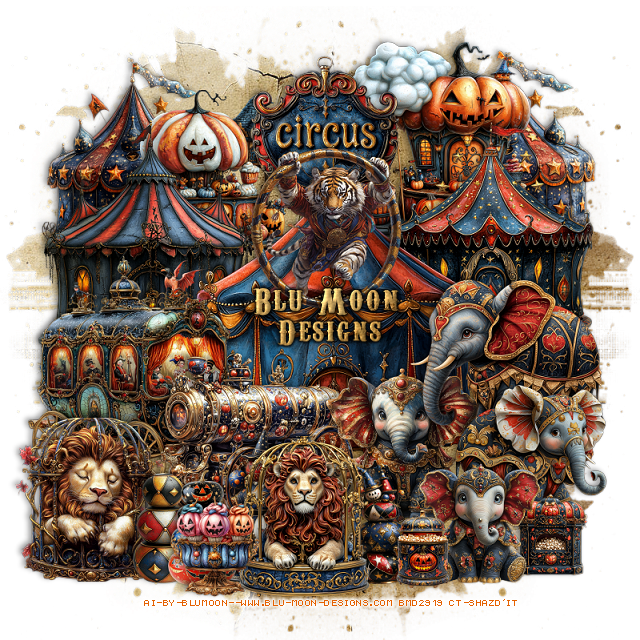
PTU Bizarre Circus


 This tut was written September 10th, 2024 for those with a basic knowledge of psp. 

AI generated kit and tubes by Blu Moon 
Everything is included in the kit
Read the TOU on how to credit your tags 

I used PSP2020...but any of them should work.
PTU Scrap Bizarre Circus by Blu Moon Designs  HERE 
Check out the rest of her store HERE
Circus/Animal theme, the kit contains 46 elements and 15 papers
Mask of choice, I used Vivienne's Digital Tagging Mask 41 HERE
Check out the rest of the blog  HERE

Font of choice, I used Carnevalee Freakshow

Drop Shadow as you go is V -2 H 4, 50, 10, color black or use what you prefer.
Let's get started
*Remember to add your drop shadow as you go along*

Open a new image 800 x 800, paste paper 2, apply your mask, move 

Resize element 31 to 20%, paste at the top.
Resize element 14 to 40%, paste.
Resize element 36 to 30%, paste at the upper left below the tent.
Resize element 37 to 30%, paste on the upper right below the tent.
Resize element 16 to 25%, paste at the upper right below the sign.
Resize element 13 to 25%, paste at the upper left below the sign, 
duplicate, move to the right below the pumpkin and cloud.
Resize element 15 to 20%, paste on the upper left between the 2 tents.

Resize element 44 to 25%, paste on the right above the tent.
Resize element 1 to 20%, paste at the bottom right.
Resize element 45 to 20%, paste below the other elephants.
Resize element 8 and 9 to 10%, paste at the bottom.
Resize element 23 to 25%, paste below the elephants to the left.
Resize element 10 to 30%, mirror,  paste on the left below the cannon.
Resize element 2 to 20%, paste at the bottom being on the top layer.
Resize element 11 to 20%, paste at the bottom behind the lion on the left.
Resize element 12 to 15%, paste on the right behind the lion.
Resize element 6 to 20%, paste on the bottom left.
Resize element 40 to 20%, paste above the tent at the top.
Resize element 43 to 15%, paste at the bottom right between the popcorn elements.
Resize element 18 and 20 to 15%, paste at the bottom left above the lions.
Resize element 17 to 13%, paste at the bottom.

Add any other elements you would like, resize.
Crop your tag to be sure no shadows or lines are on the edges.
 Then add your copyright and name.
That's it

Hope you enjoyed doing my tut    
Monday, September 9, 2024

Witchy Adventure Free kit


 This tut was written September 9th, 2024 for those with a basic knowledge of psp. 

AI generated free kit and tubes by Blu Moon 
Everything is included in the kit
Read the TOU on how to credit your tags 

I used PSP2020...but any of them should work.
PTU Scrap Witchy Adventure by Blu Moon Designs  HERE 
Check out the rest of her store HERE
 The kit contains 20 elements and 4 papers and she is offering it for Free
Put the kit in your cart and it will show it is free even thought it shows .99 cents.
Mask of choice, I used Vivienne's Digital Tagging Mask 30 HERE
Check out the rest of the blog  HERE

Font of choice, I used Cirkus

Drop Shadow as you go is V -2 H 4, 50, 10, color black or use what you prefer.
Let's get started
*Remember to add your drop shadow as you go along*

Open a new image 800 x 800, paste paper 3, apply your mask.

Resize element 2 to 70%, mirror, paste on the upper left.
Resize element 14 to 55%, paste on the right and down.
Resize element 16 to 35%, paste on the bottom right.
Resize element 7 to 35%, paste between the houses.
Resize element 13 to 35%, mirror, paste by the house on the left.
Resize element 3 to 35%, paste on the left below the wagon.

Resize element 8 to 40%, paste above the houses.
Resize element 21 to 15%, mirror, paste above the witch on the left.
Resize element 15 to  25%, paste on the right of the witch.
Resize element 18 to 25%, paste by the books.
Resize element 6 to 20%, paste at the bottom by the books.
Resize element 1 to 30%, paste on the bottom right by the wagon.
Resize element 20 to 20%, paste at the upper right.
Resize element 4 to 25%, mirror, paste on the bottom right.
Resize element 11 to 30%, mirror, paste at the bottom left.
Resize element 12 to 15%, paste at the bottom.

Add any other elements you would like, resize.
Crop your tag to be sure no shadows or lines are on the edges.
 Then add your copyright and name.
That's it

Hope you enjoyed doing my tut    
Sunday, September 8, 2024

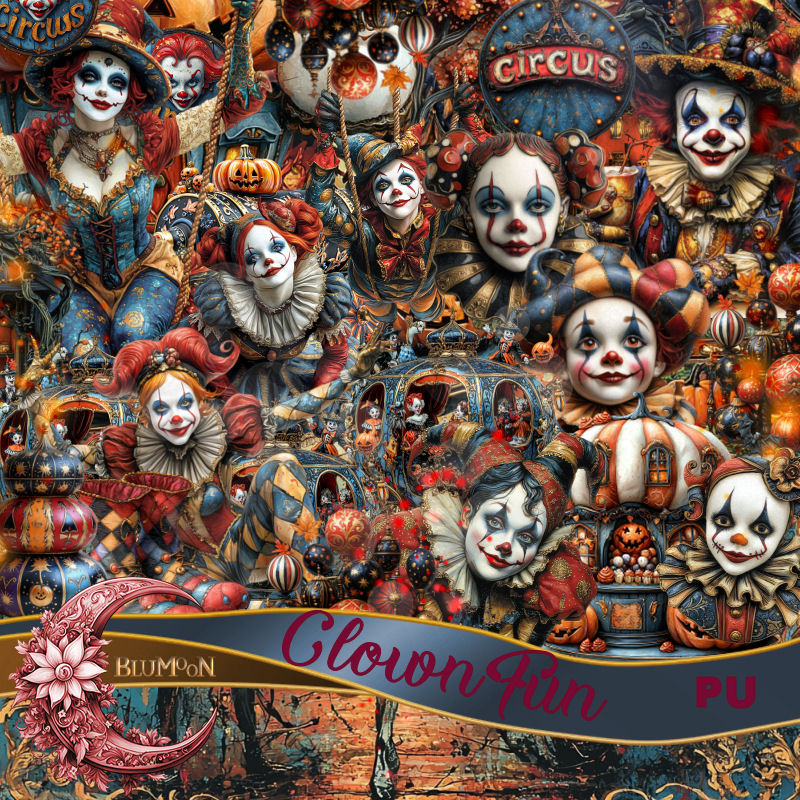
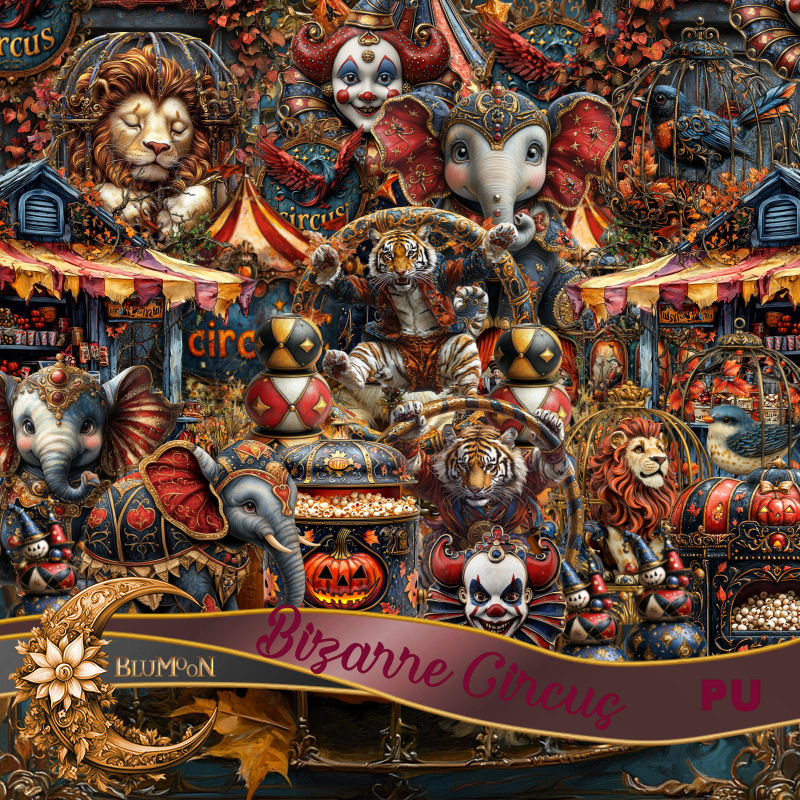
PTU Clown Fun


 This tut was written September 8th, 2024 for those with a basic knowledge of psp. 

AI generated kit and tubes by Blu Moon 
Everything is included in the kit
Read the TOU on how to credit your tags 

I used PSP2020...but any of them should work.
PTU Scrap Clown Fun by Blu Moon Designs  HERE 
Check out the rest of her store HERE
Circus/Clown theme, the kit contains 69 elements and 17 papers
Mask of choice, I used Vivienne's Digital Tagging Mask 41 HERE
Check out the rest of the blog  HERE

Font of choice, I used Carnevalee Freakshow

Drop Shadow as you go is V -2 H 4, 50, 10, color black or use what you prefer.
Let's get started
*Remember to add your drop shadow as you go along*

Open a new image 800 x 800, paste paper 5, apply your mask, move 
to the left, duplicate, mirror, merge the 2 mask together.
Select the mask, select all, float, defloat, paste element 23 on the upper left
of the mask so the face shows, duplicate, mirror, move on the right side, 
invert, delete both, erase the rope part on the one, merge down with the mask

Resize element 39 to 20%, paste at the top center.
Resize element 18 to 30%, paste at the upper right.
Resize element 50 to 30%, paste on the upper left.
Resize element 51 to 40%, paste above the circus sign.

Resize element 36 to 40%, paste on the right above the tent.
Resize element 8 to 30%, mirror, paste on the left above the tent.
Resize element 10 to 25%, paste at the bottom above the lady clown.
Resize element 28 to 25%, paste at the bottom below the lady.
Resize element 49 to 35%, paste at the bottom above the cannon.
Resize element 55 to 15%, paste at the bottom.
Resize element 27 to 25%, paste on the circus sign.
Resize element 64 to 15%, paste at the bottom right.
Resize element 38 to 30%, paste at the bottom left.
Resize element 65 to 15%, paste at the bottom left.
Resize element 60 to 13%, paste at the bottom right.
Resize element 14 to 20%, paste at the bottom left.

Add any other elements you would like, resize.
Crop your tag to be sure no shadows or lines are on the edges.
 Then add your copyright and name.
That's it

Hope you enjoyed doing my tut    

Friday, June 28, 2024

PTU Stone Age


 This tut was written June 28th, 2024 for those with a basic knowledge of psp. 

AI generated kit and tubes by Blu Moon 
Everything is included in the kit
Read the TOU on how to credit your tags 

I used PSP2020...but any of them should work.
PTU Scrap Stone Age by Blu Moon Designs  HERE 
The kit has 65 elements, 15 papers and 1 Exclusive Al generated tube
Check out the rest of her store HERE
Mask of choice, I used Vivienne's Digital Tagging Mask 41 HERE
Check out the rest of the blog  HERE

Font of choice, I used Wonderful Junge

Drop shadow as you go is V -2 H 4, 50, 10, or use what you prefer.
Let's get started
*Remember to add your drop shadow as you go along*

Open a new image 800 x 800, paste paper 6, apply your mask, move
to the left, duplicate, mirror.

Resize Al el 31 to 65%, paste on the right and up.
Resize Al el 65 to 65%, paste on the bottom left.
Resize Al el 20 to 65%, paste between the huts.
Resize Al el 39 to 90%, behind the huts on the left.

Resize the tube to 60%, paste on the bottom left.

Resize Al el 32 to 40%, mirror, paste on the lower right.
Resize Al el 26 to 40%, paste behind the tube on the bottom left.
Resize Al el 15 to 30%, paste on the right behind the girl.
Resize Al el 16 to 20%, paste at the bottom.
Paste Al el 11, paste on the bottom layer and down so the water part shows.
Resize Al el 52 to 30%, paste at the bottom left above the tube.
Resize Al el 18 to 30%, paste at the bottom below the tube.
Resize Al el 19 to 30%, paste on the right below the tree.
Resize Al el 28 to 65%, paste behind the palm tree on the left, duplicate, 
mirror, move up.

Resize Al el 36 to 50%, mirror, paste on the right above the dinosaur.
Resize Al el 40 to 85%, paste on the upper right below the dinosaur.
Resize Al el 49 to 30%, paste at the bottom.
Resize Al el 33 to 40%, paste at the bottom right. 
Resize Al el 56 to 35%, paste at the bottom below the barrel and the girl.

Add any other elements you would like, resize.
Crop your tag to be sure no shadows or lines are on the edges.
 Then add your copyright and name.
That's it

Hope you enjoyed doing my tut   

Thursday, June 13, 2024

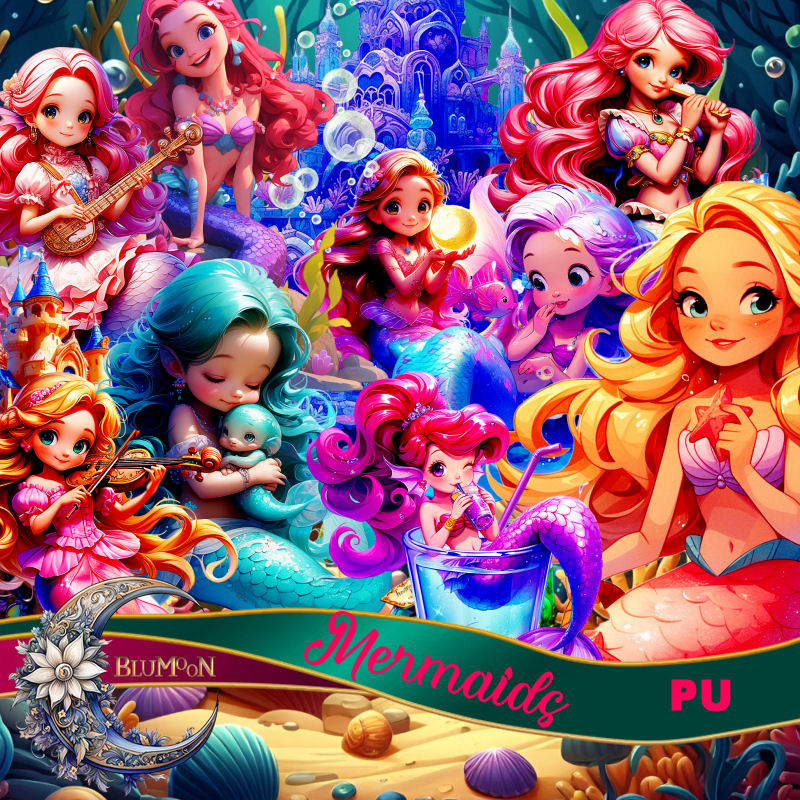
PTU Mermaids


 This tut was written June 10th, 2024 for those with a basic knowledge of psp. 

AI generated kit and tubes by Blu Moon 
Everything is included in the kit
Read the TOU on how to credit your tags 

I used PSP2020...but any of them should work.
PTU Scrap Mermaids by Blu Moon Designs  HERE 
Mermaid/Fantasy theme kit, it has 71 elements and 20 papers
Check out the rest of her store HERE
Mask of choice, I used RD mask 116_4 HERE
Check out the rest of the blog  HERE

Font of choice, I used Dragging Canoe

Drop shadow as you go is V -2 H 4, 50, 10, or use what you prefer.
Let's get started
*Remember to add your drop shadow as you go along*

Open a new image 800 x 800, paste paper 11, apply your mask.

Resize AI element 61 to 75%, paste on the left, duplicate, mirror.
Paste AI element 57 center.
Resize AI element 69 to 20%, paste on the upper left below the harp.
Resize AI element 71 to 20%, paste on the upper right below the harp.
Resize AI element 66 to 20%, paste on the lower right above the harp.
Resize AI element 26 to 35%, paste on the bottom left being on the top layer.
Resize AI element 35 to 30%, paste on top of the chest.
Resize AI element 31 to 35%, paste at the bottom above the chest, duplicate, 
move to the right, duplicate, mirror, move to the left.

Resize AI element 16 to 40%, paste on the bottom right below the greenery.
Resize AI element 19 to 35%, paste at the bottom below one of the greenery.
Resize AI element 6 to 15%, paste at the bottom left.
Resize AI element 28 to 25%, paste at the bottom right by the boat.
Resize AI element 3 to 20%, paste at the bottom right,
duplicate, move to the left above the chest.
Resize AI element 13 to 25%, paste at the bottom left.
Resize AI element 55 to 20%, paste at the bottom.
Resize AI element 27 to 25%, paste on the left below the harp.
Resize AI element 42 to 15%, mirror, paste on the right below the harp.
Resize AI element 4 to 75%, paste on the right above the mask layer, 
duplicate, mirror.
Resize AI element 1 to 15%, paste on the top layer.
Paste AI element 15 above the mask on one side so the water shows 
at the bottom, duplicate, mirror.

Add any other elements you would like, resize.
Crop your tag to be sure no shadows or lines are on the edges.
 Then add your copyright and name.
That's it

Hope you enjoyed doing my tut   
Thursday, May 23, 2024

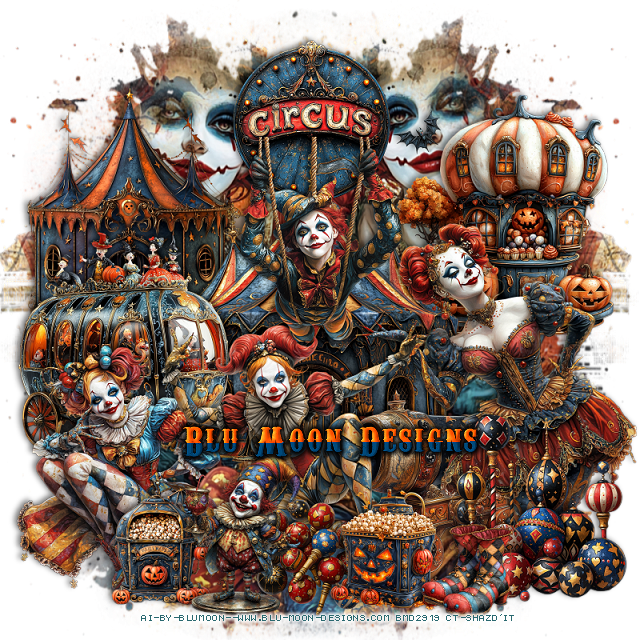
PTU Space Kingdom


 This tut was written May 22nd, 2024 for those with a basic knowledge of psp. 

AI generated kit and tubes by Blu Moon 
Everything is included in the kit
Read the TOU on how to credit your tags 

I used PSP2020...but any of them should work.
PTU Mini kit, Space Kingdom by Blu Moon Designs  HERE 
It has 31 elements and 12 papers
Check out the rest of her store HERE
Mask of choice, I used Miz Teeques mask 70 HERE
Check out the rest of the blog  HERE
Filters
Fun House-Streak Mirror

Font of choice, I used Dragonfly

Drop shadow as you go is V -2 H 4, 50, 10, or use what you prefer.
Let's get started
*Remember to add your drop shadow as you go along*

Open a new image 800 x 800, paste paper 6, flip, apply your mask.
Apply Fun House filter-Streak Mirror to the mask.
Duplicate the mask, hold the shift key and drag down one side, then
the other side, move to the bottom.

Resize element 6 to 65%, paste at the upper left.
Paste element 27 above the planet.
Resize element 25 to 65%, paste on the bottom right above the mask.
Resize element 5 to 65%, paste on the bottom left above the mask.

Resize element 10 to 25%, paste on the upper left above the planet.
Resize element 12 to 25%, mirror, paste at the upper right, duplicate,
move down more.
Resize element 11 to 30%, paste at the bottom being on the top layer.
Resize element 24 to 30%, paste at the bottom right.
Resize element 20 to 30%, paste at the bottom behind the creature, duplicate, 
mirror, duplicate again, move to the right more.
Resize element 30 to 20%, mirror, paste behind the flowers.

Resize element 23 to 20%, paste at the bottom behind the creature.
Resize element 19 to 35%, paste on the right above the castle at the bottom,
duplicate, mirror, move behind the castle on the left.
Resize element 7 to 30%, paste at the bottom left.
Resize element 8 to 30%, paste on the bottom right.
Resize element 20 to 25%, paste at the bottom right above the car,
duplicate, mirror.
Resize element 9 to 20%, paste on the swirl tower on one of the rings.
Paste the sparkles on the mask at the upper right where you like, 
duplicate a couple of times, mirror one, move where you like.

Add any other elements you would like, resize.
Crop your tag to be sure no shadows or lines are on the edges.
 Then add your copyright and name.
That's it

Hope you enjoyed doing my tut