Showing posts with label Jose Cano. Show all posts

Thursday, May 16, 2019

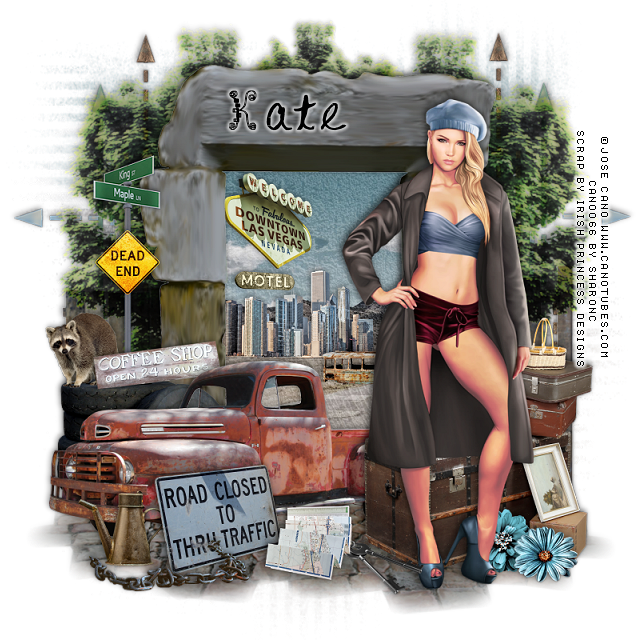
PTU The Road So Far


This tut was written May 16th, 2019 for those with a basic knowledge of psp.
I am using the awesome artwork of  Jose Cano
The tube is  "Chole
You need a license to use this tube, do not use without a license.
You can find this art at Cano's Store  HERE

I used PSPX...but any of them should work.
PTU kit The Road So Far by Irish Princess Designs HERE  HERE and HERE
WSL Mask 81 HERE

Font of choice,  I used Bricks and Wires Tidy

Drop shadow is usually V-2 H-2 Black, 50, 5, use what you prefer.
Let's get started
*Remember to add your drop shadow as you go along*

Open a new layer 800 x 800
Select all, add a new layer, paste paper 22, into selection, apply your mask.

Resize frame 2 to 70%, paste, click inside with your magic wand, expand by
5, resize paper 22 to 70%, paste, adjust how you like, invert, delete, select none.

Resize element 40 to 25%, paste inside the frame to the left.
Resize element 161 to 20%, paste inside the frame to the right.
Resize element 93 to 15%, paste inside the frame at the upper left.

Resize element 1 to 75%, paste at the bottom above the frame to one side, 
duplicate, mirror.

Resize your tube to 65%, paste on the right above the brick walk.

Resize element 2 to 80%, paste below the paper layer of the frame and down.
Resize element 5 to 75%, paste below the paper layer of the frame on one side,
duplicate, mirror, duplicate again, resize to 65%, paste in the center.

Resize element 83 to 60%, paste on the left below the tube on the brick walk.
Resize element 62 to 40%, paste behind the tube at the lower right.
Resize element 152 to 30%, paste behind the truck on the left.
Resize element 10 to 15%, paste on the tires.

Resize element 13 to 10%, paste at the lower right above the tube layer.
Resize element 12 to 10%, paste by the other flower.

Resize element 50 to 20%, paste above the truck.
Resize element 159 to 15%, paste at the lower left above the truck layer.
Resize element 157 to 15%, paste at the bottom by the foot of the tube.

Resize element 38 to 65%, paste below the trees on the left, duplicate, mirror.
Resize element 52 to 15%, paste at the bottom.
Resize element 71 to 50%, paste on the left below the tires.
Resize element 49 to 25%, paste at the bottom above the road closed sign.

Resize element 51 to 10%, paste on the street sign post.
Resize element 42 to 10%, paste inside the frame under the Las Vegas sign.
Resize element 88 to 20%, paste on the tires below the tube, mirror and move the
raccoon below the sign.

Add any other elements that you like, make it your own.
Remember to always adjust all the elements how you like on your tag,
then resize your mask if needed before merging your tag.

Once happy, close off any background you had.
 Crop your tag to get rid of any stray edges, merge visible.
I used xero Clarity on the merged tag before adding the name and copyright.
Resize, sharpen, add your Copyright and name.

That's it
Hope you enjoyed doing my tut.

Saturday, May 5, 2018

PTU Dolphin Sands


This tut was written May 5th, 2018 for those with a basic knowledge of psp.
I am using the awesome artwork of  Jose Cano
The tube is "Isla"
You need a license to use this tube, do not use without a license.
You can find this tube at his store  HERE

I used PSPX...but any of them should work.
PTU Dolphin Sands by Irish Princess Designs  HERE, HERE or HERE
RD Mask Set 116_2 HERE
Check out the rest of the blog  HERE

Font of choice,  I used Kleymissky

Drop shadow is usually V-2 H-2 Black, 50, 5, use what you prefer.
Let's get started
*Remember to add your drop shadow as you go along*

Open a new image 800 x 800
Paste paper 24, apply  your mask, delete, merge group, duplicate, 
merge down.
Paste element 18, resize to 75%, move down.

Resize element 66 to 30%, paste at the bottom, duplicate three more times,
mirror one, then arrange the other two in the middle.
Paste element 95 at the bottom, resize to 95%.
Resize element 84 to 40%, paste to the left below the water layer and 
showing some above the fence.

Resize your tube to 50%, mirror, paste on the right on the sand.

Resize element 4 to 75%, paste on the left above the sand.
Resize element 38 to 15%, paste on the fence in the center.
Resize element 59 to 25%, paste on the mask layer partially behind the tube, 
lower the opacity to 70.

Resize element 58 to 50%, paste at the lower left on the sand in front of the tree.
Resize element 138 to 40%, paste at the bottom above the tube to cover
the straight edge of the legs.

Resize element 25 to 20%, paste at the lower left in front of the driftwood.
Resize element 3 to 15%, paste at the bottom by the sand castle.
Resize element 7 to 15%, paste on the picnic table.
Resize element 145 to 20%, paste by the first bottle.

Resize element 48 to 30%, duplicate, paste both at the top how you like.
Resize element 69 to 20%, paste at the bottom to the left by the table.
Resize element 91 to 30%, free rotate to the right at 15 degrees, paste behind
the tube on the right.
Resize element 83 to 25%, paste at the bottom by the table leg.
Resize element 93 to 20%, paste at the bottom by the bag.
Resize element 27 to 15%, paste on the right just above the tube legs, duplicate,
mirror, move below the picnic table on the left.
Resize element 81 to 45%, paste behind the dolphin.

Resize element 68 to 30%, paste on the right above the fence at the edge
of the fence, duplicate, mirror.
Resize element 146 to 30%, mirror, paste on the post behind the tube.
Resize element 14 to 15%, paste on the picnic table.
Resize element 67 to 60%, paste on the right below the fence layer.
Resize element 97 to 20%, paste at the lower left above the canvas bag at 
the bottom.
Resize element 115 to 15%, paste on one side below the white flowers, 
duplicate, move to the other side, duplicate once more and move back by the sign.
Resize element 64 to 60%, paste on the mask layer about center.

Add any other elements that you would like, make it your own.

Once happy, close off any background you had.
 Crop your tag to get rid of any stray edges, merge visible.
Resize, sharpen, add your Copyright and name.

That's it
Hope you enjoyed doing my tut.


Friday, May 5, 2017

FTU May Beauty


This tut was written May 4th, 2017 for those with a basic knowledge of psp.
I am using the awesome artwork of  Jose Cano
Tube is called "Stacy"
You need a license to use this art work. Please do not use without a license.
 You can find this art at his store  HERE

Supplies Needed
I used PSPX...but any of them should work.
FTU Scrap May Blossoms by Melissaz Creationz  HERE
Melissaz Creationz Mask 10 HERE
Check out the rest of the blog HERE
Filters
Mura Meister Copies-Encircle
Xero-Soft Mood

Font of Choice, I used Qaskin Black

Drop shadow is usually V-2 H-2 Black, 50, 5, use what you prefer.
Let's get started
*Remember to add your drop shadow as you go along*

Open a new image 800x800
Paste paper 7, resize your mask larger to 115%, paste, delete, merge group.

Resize element 10 to 75%, erase the stem and small flower, apply
Mura Meister Copies-Encircle, change the first number to 25.

Resize element 3 to 65%, apply Mura Meister Copies-Encircle, first number
change to 14.

Paste element 19, apply Mura Meister Copies, change the first number to 12,
resize larger to 108%.

Paste element 23, resize to 83%, apply Mura Meister Copies-Encircle, change the
first number to 14.
Click inside the second circle from the top, expand by 2, paste paper 7, invert, delete.

Resize your tube to 95%, paste below all the circles, duplicate, move to the top
layer, erase any part outside the circle on both tubes.

Paste element 32 on the right on the flowers, duplicate, mirror, flip.
Paste element 30 on the mask layer on the right, duplicate, mirror, duplicate again,
move up and erase the part you don't want showing, duplicate, flip.

Resize element 33 to 50%, apply Mura Meister Copies-Encircle, change the
first number to 20, paste below the paper layer of the frames.

Paste element 28 at the bottom on the top layer.
Paste element 1 on the left on top of the ribbon layer, duplicate move to the
upper right, erasing the ones you don't want.

Add any other elements you would like to add.
Hold the shift key and hit the letter d to duplicate your tag.

Once happy with everything, close off any background, duplicate the tag,
go to Adjust, Blur, Gaussian blur, number on 5, change the blend mode
to Screen. 
Apply the Xero filter-Soft Mood twice, merge down.

Crop your tag to be sure no stray shadows are on the edges of your tag.
Resize first, then add your copyrights and name.

Signature tag
Open a new image 600 x250, fill with #eebcd8.
Close off your tubes on the tag you copied, and the butterflies on the lower left,
 copy merge, paste on your  new image, adjust.
Open the tubes and butterflies, copy the tag merged, paste, resize to 80%.

Merge visible, duplicate, go to Adjust, Blur, Gaussian blur, number on 5,
change the blend mode to Screen, apply the Xero filter-Soft Mood Twice, merge down.
Frame of choice.
I added a new layer, filled with #c95583, contract by 3, delete, add noise at 50%.

Add your copyright and name.

Avator
Size of choice, I opened a new image 200 x 200
Take your preset shape circle, width at 3, foreground color #c95583,
close off the background color,
draw a circle out, change to a raster layer.  Click inside with your magic
wand, expand by 2, duplicate the signature tag, resize to 85%, paste,
adjust, invert, delete, select none. Add noise on the frame at 50%.

Add your copyright and name.

That's it
Hope you enjoyed doing my tut.