Showing posts with label Gothic/Halloween. Show all posts

Monday, October 13, 2025

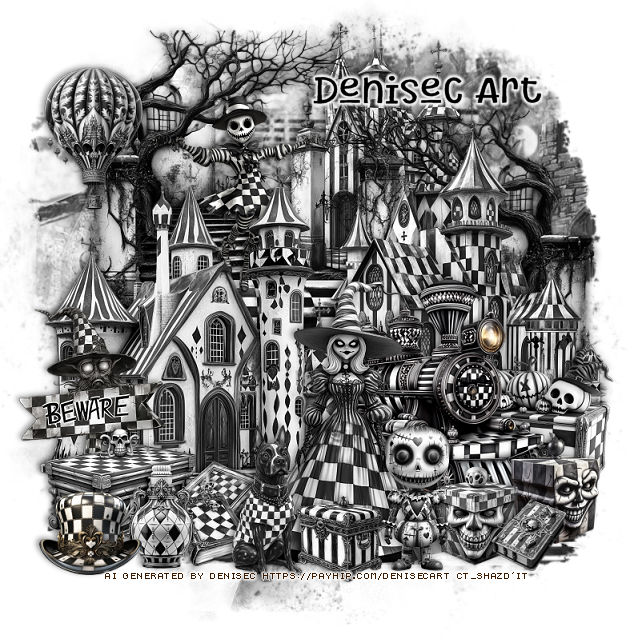
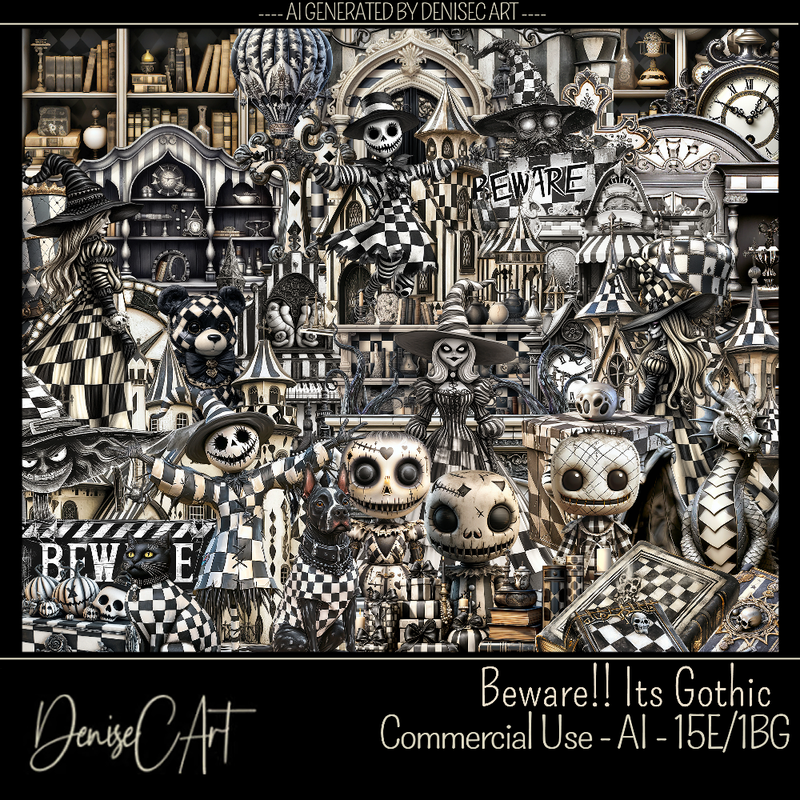
PTU Beware!! It's Gothic


 This tut was written October 13th, 2025 for those with a basic knowledge of psp. 

AI generated kit and tube by DeniseC Art

Everything used is included in the kit
Read the TOU on how to credit your tags

I used PSP2020...but any of them should work.
PTU Scrap Beware!! It's Gothic by DeniseC Art  HERE  
You can find all DeniseC Art kits  HERE
Mask of choice, I used RD Mask Set 671  HERE
Check out the rest of the blog HERE    
 
Font of choice, I used Something Maker

Drop shadow as you go is V -2 H -4, 50, 10, or use what you prefer.
Let's get started
*Remember to add your drop shadow as you go along*

Open a new image 800 x 800, resize paper 4 to 60%, paste, apply your mask,

Resize element 17 to 30%, paste at the upper right, go to Adjust,
Hue and Saturation, Colorize, both number on 0.
Change the color on all the elements the same.
Resize element 31 to 25%, change the color, paste on the upper right above the mask.
Resize element 7 to 35%, paste on the left, change the color the same as before.
Resize element 49 to 35%, paste between the castles.
Resize element 47 to 45%, paste below the castles at the top, colorize like the
others, duplicate, mirror, move to the right and below the other layers.
Resize element 24 to 25%, paste at the bottom above the castles, color change.

Resize element 20 to 20%, paste on the bottom right below the train.
Resize element 45 to 20%, paste behind the castles on the steps.
Resize element 29 to 20%, paste at the bottom, change the color.
Resize element 59 to 15%, paste below the dog on the left, change the color.
Resize element 58 to 20%, paste at the bottom above the lady, color change.

Resize element 30 to 15%, paste at the bottom left above the books.
Resize element 2 to 20%, paste on the left below the vase and books.
Resize element 19 and 56 to 15%, paste on the bottom right.
Resize element 32 to 20%, paste on the left below the chest.
Resize element 55 to 20%, paste at the upper left.
Resize element 41 to 15%, paste at the bottom left.
Resize element 42 to 10%, paste at the bottom right.
Resize element 57 to 10%, paste at the bottom by the dog.

Add any other elements that you would like, make it your own.
Always readjust your mask and elements how you like them before you
 merge your tag, resize, sharpen.

Crop your tag to be sure no shadows or lines are on the edges.
 Then add your copyright and name.
That's it

Hope you enjoyed doing my tut               

Tuesday, September 30, 2025

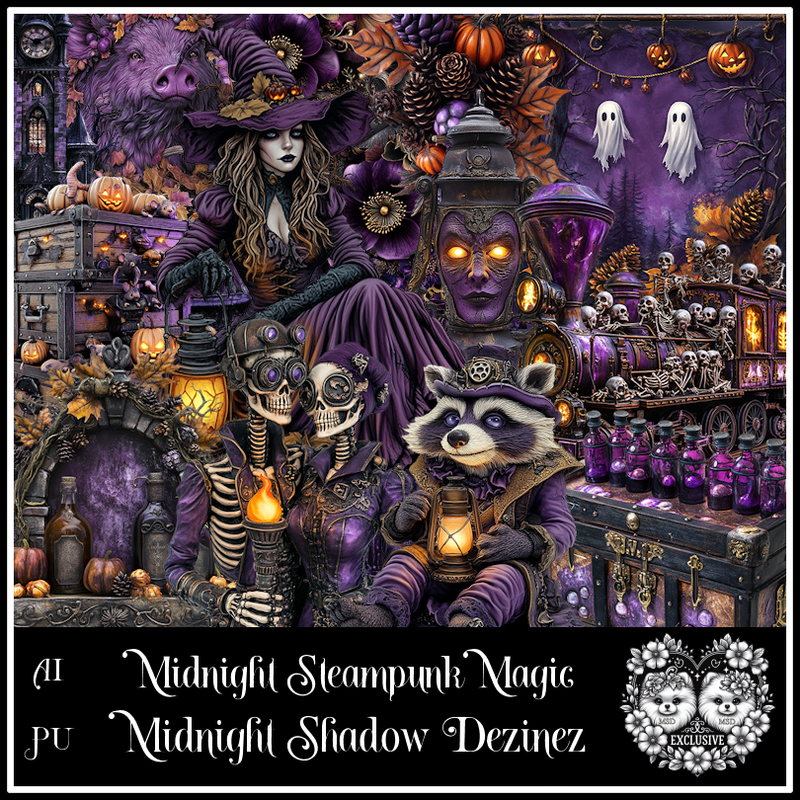
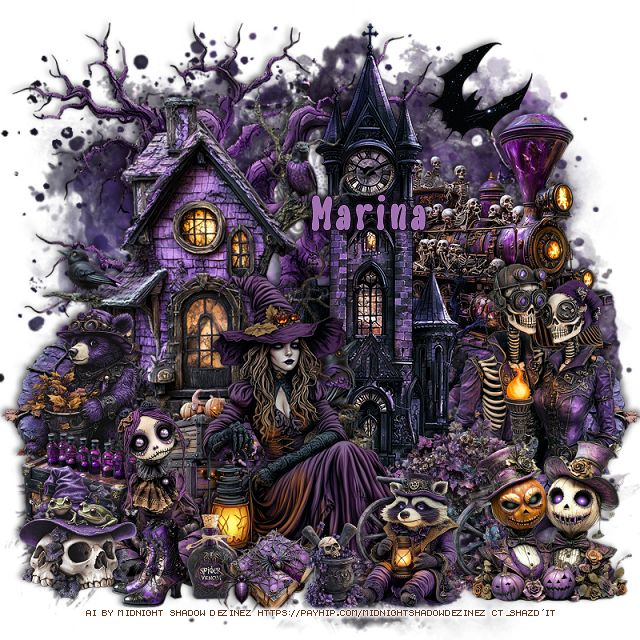
PTU Midnight Steampunk Magic Exclusive


  This tut was written September 30th, 2025 for those with a basic knowledge of psp. 

Awesome AI kit and tube by Midnight Shadow Dezinez

Everything used is included in the kit
Read the TOU on how to credit your tags

I used PSP2020...but any of them should work.
PTU Scrap Midnight Steampunk Magic Exclusive by 
Midnight Shadow Dezinez  HERE
You can find all Midnight Shadow Dezinez kits HERE
Mask of choice, I used RD Mask 720 HERE
Check out the rest of the blog HERE        

Font of choice, I used Liquidie

Drop shadow as you go is V -2 H -4, 50, 10, or use what you prefer.
Let's get started
*Remember to add your drop shadow as you go along*

Open a new image 800 x 800, paste paper 7, apply your mask.

Paste element 20 on the left.
Resize element 1 to 85%, paste on the upper left.
Paste element 23 on the right below the house.
Resize element 5 to 65%, paste above the house.
Resize element 39 to 40%, paste below the tube on the left.
Resize element 18 to 40%, paste at the bottom above the tube.
Resize element 28 to 60%, paste on the left below the house, duplicate, mirror.
Resize element 27 to 60%, mirror, paste on the upper right below the buildings.

Resize element 36 to 40%, paste at the bottom left above the tube.
Resize element 25 to 45%, paste on the right above the clock tower.
Resize element 31 to 35%, paste on the left above the house.
Resize element 3 to 30%, paste on the left above the bear.
Resize element 2 to 30%, paste on the bottom right above the wagon.
Resize element 59 to 40%, paste at the bottom right.
Resize element 37 to 30%, paste at the bottom left.

Resize element 50 to 20%, paste at the bottom.
Resize element 48 to 15%, paste at the bottom.
Resize element 30 to 20%, paste at the bottom.
Resize element 10 and 13 to 20%, paste at the bottom.

Add any other elements that you would like, make it your own.
Always readjust your mask and elements how you like them before you
 merge your tag, resize, sharpen.

Crop your tag to be sure no shadows or lines are on the edges.
 Then add your copyright and name.
That's it

Hope you enjoyed doing my tut               
Friday, September 26, 2025

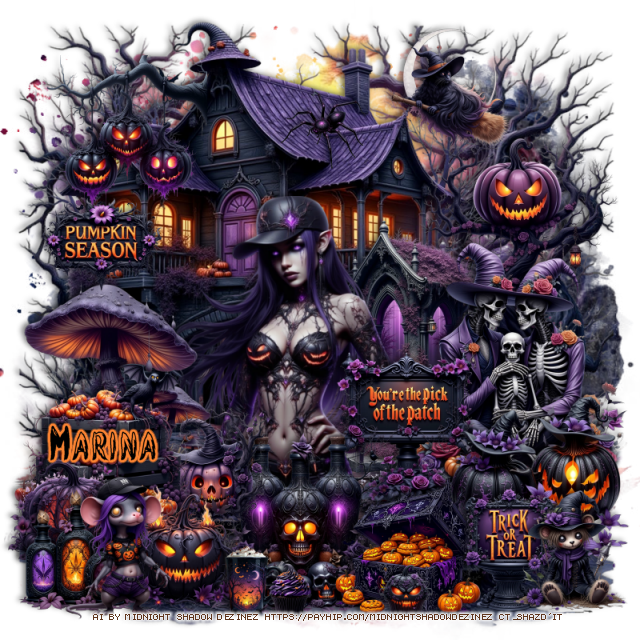
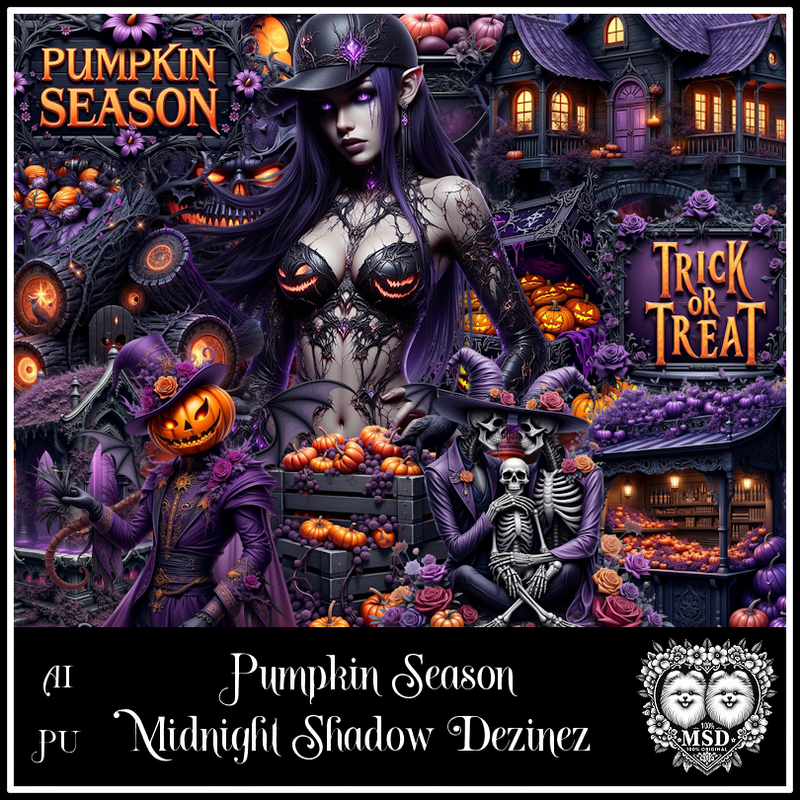
PTU Pumpkin Season


 This tut was written September 25th, 2025 for those with a basic knowledge of psp. 

Awesome AI kit and tube by Midnight Shadow Dezinez

Everything used is included in the kit
Read the TOU on how to credit your tags

I used PSP2020...but any of them should work.
PTU Scrap Pumpkin Season by Midnight Shadow Dezinez  HERE
You can find all Midnight Shadow Dezinez kits HERE
Mask of choice, I used RD Mask 720 HERE
Check out the rest of the blog HERE        

Font of choice, I used Brush

Drop shadow as you go is V -2 H -4, 50, 10, or use what you prefer.
Let's get started
*Remember to add your drop shadow as you go along*

Open a new image 800 x 800, paste paper 4, apply your mask.

Resize element 34 to 85%, paste.
Resize element 13 to 75%, paste at the upper left.
Resize element 32 to 35%, paste on the right.
Resize element 12 to 25%, paste on the upper left on the house.
Resize element 40 to 40%, paste to the right by the pumpkin tree.
Resize element 46 to 40%, paste on the right.
Resize element 28 to 25%, paste by the skeletons.

Resize element 20 to 55%, paste below the sign.

Resize element 53 to 30%, paste at the bottom above the tube.
Resize element 1 to 35%, paste on the left.
Resize element 44 to 30%, paste on the left above the mushrooms.
Resize element 21 to 30%, paste at the bottom right.
Resize element 18 to 25%, paste at the bottom.
Resize element 17 and 54 to 20%, paste on the bottom left.
Resize element 22 to 20%, paste on the bottom right.
Resize element 52 to 25%, mirror, paste on the bottom left.

Resize element 2 to 20%, paste on the left on the house.
Resize element 7 to 20%, paste above the mushrooms by the tube.
Resize element 24 to 20%, paste at the bottom right.
Resize element 15 to 20%, paste at the upper right.
Resize element 4 to 15%, paste on the house.
Resize element 14 to 15%, paste at the bottom.
Resize element 30 to 20%, paste on the bottom left below the mouse.
Resize element 8 to 10%, paste at the bottom.
Resize element 94 to 10%, paste at the bottom.

Add any other elements that you would like, make it your own.
Always readjust your mask and elements how you like them before you
 merge your tag, resize, sharpen.

Crop your tag to be sure no shadows or lines are on the edges.
 Then add your copyright and name.
That's it

Hope you enjoyed doing my tut