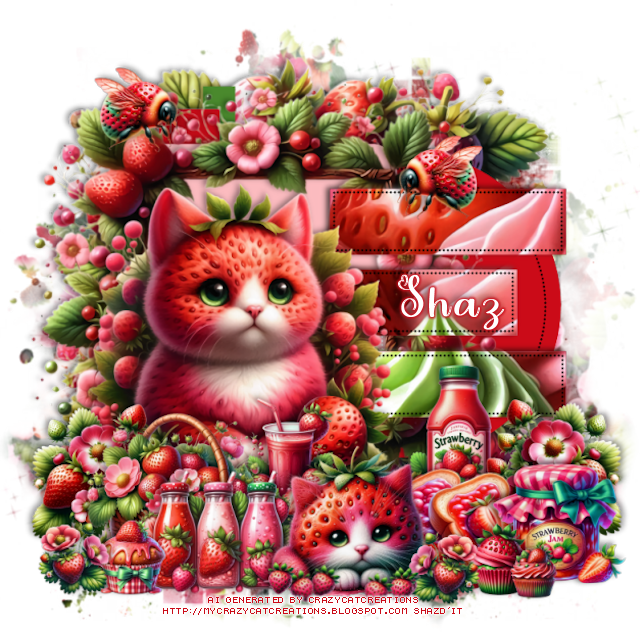
This tut was written June 18th, 2025 for those with a basic knowledge of psp.
I am using an adorable Al kit by Crazy Cat Creations
Everything used is included in the kit
Read their TOU on how to credit your tags.
I used PSP2020...but any of them should work.
Drop shadow is V-1 H-4 Black, 40, 10, use what you prefer.
Let's get started
*Remember to add your drop shadow as you go along*
Open the template, delete the credits.
Resize element 22 to 40%, apply Mura Meister Copies, wallpaper (rotate),
change the first number to 26, apply your mask.
Resize element 14 to 60%, paste above the mask.
Layer 1, add a new layer, fill with #cb0b18
Layer 2, add a new layer, fill with #4a892d
Layer 3, add a new layer, fill with #cb0b18
Layer 4, add a new layer, fill with #fbbbbf
Resize element 30 to 50%, paste above the square.
Layer 5, add a new layer, fill with a red gradient, keep selected, paste
element 20, invert, delete.
Resize element 1 to 40%, paste at the bottom left.
Resize element 22 to 20%, paste at the bottom left above the cat, duplicate,
mirror.
Resize element 12 to 20%, paste above the big cat at the bottom.
Resize element 31 to 25%, paste at the bottom left.
Resize element 16 to 23%, paste at the bottom below the basket.
Resize element 23 to 20%, paste at the bottom below the cat.
Resize element 11 to 20%, paste below the cat on the right.
Resize element 21 to 22%, paste at the bottom right below the cat.
Resize element 5 to 17%, paste on the bottom right above the bread.
Resize element 2 to 10%, paste at the bottom above the cat, duplicate, mirror,
move by the basket.
Resize element 13 to 5%, paste at the bottom above the cat, duplicate a few times,
rotate a couple and move over more.
Resize element 19 to 10%, paste at the bottom left.
Resize element 18 to 10%, paste at the bottom right.
Resize element 6 to 7%, paste at the bottom right.
Resize element 7 to 12%, paste on the upper left, duplicate, mirror.
Add any other elements that you would like, make it your own.
Always readjust your mask and elements how you like them before you
merge your tag, sharpen once.
Crop your tag to make sure no shadows or anything on the edges
Crop your tag to make sure no shadows or anything on the edges
Then add your copyright and name.
That's it
Hope you enjoyed doing my tut.
Tag made by Julie, thank you


Nice tut Shaz!
ReplyDeleteThank you Gail, glad you liked it :)
ReplyDelete