This tut was written February 6th, 2026 for those with a basic knowledge of psp.
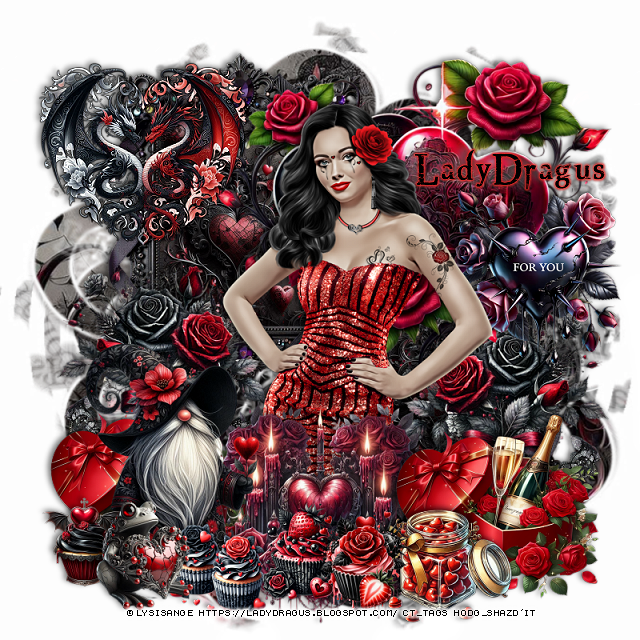
I am using the Awesome tube ©Lysisange
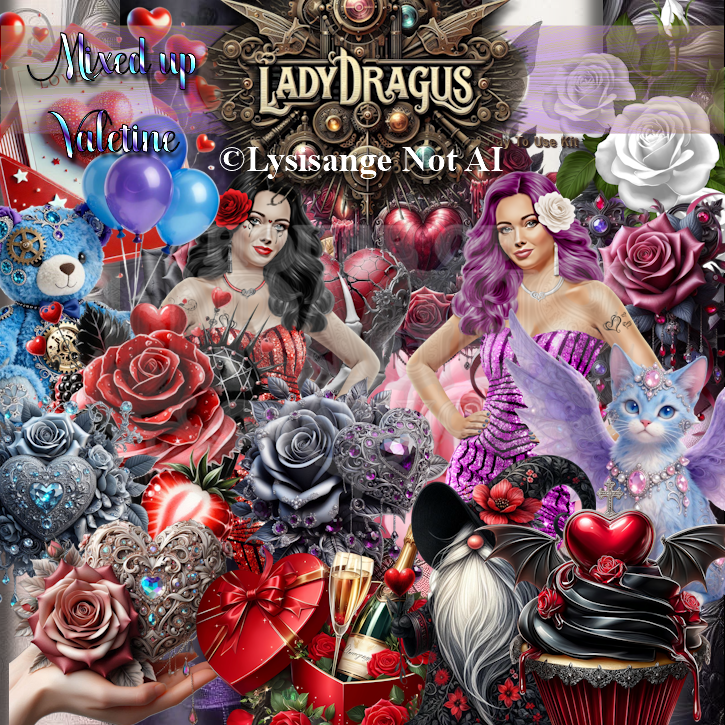
2 Tubes are in this kitTubes are not AlPlease read the TOU on how to credit your tags
Drop shadow as you go is V -2 H 4, 50, 10, or use what you prefer.
Let's get started
*Remember to add your drop shadow as you go along*
Open a new image 800 x 800, paste paper 25, apply your mask, mirror,
erase a little where you like.
Resize 18 to 45%, paste at the upper left, duplicate, move
down on the right, click inside, resize paper 25 to 35%, paste in
each frame, invert, delete.
Resize tube 1 to 55%, paste above the frames.
Resize 4 to 35%, paste on the right below the tube, duplicate, mirror,
move up on the frame.
Resize 15 to 35%, paste at the bottom right above the tube,
duplicate, do not mirror, move to the right below the tube.
Resize 69 to 65%, paste below the tube to the upper right.
Resize 63 to 30%, paste on the right on the hearts.
Resize 18 to 22%, paste at the bottom above the candy and champagne.
Resize 13 to 35%, paste at the upper left on the frame, add a black
gradient glow.
Resize 9 and 10 to 17%, paste at the bottom above the tube.
Resize 6 to 40%, mirror, paste on the bottom left, hiding the champagne bottle.
Resize 14 to 17%, paste at the bottom left above the gnome.
Resize 24 to 20%, paste at the bottom left above the cupcakes.
Resize 2 to 40%, paste at the bottom in front of the tube behind the cupcakes.
Resize 12 to 15%, paste below the frog on the bottom left.
Add any other elements that you would like, make it your own.
Always readjust your mask and elements how you like them before you
merge your tag, resize, sharpen.
Crop your tag to be sure no shadows or lines are on the edges.
Then add your copyright and name.
That's it
Hope you enjoyed doing my tut

No comments:
Post a Comment